

Prerequisites
Before you begin, ensure you have:- A verified X (Twitter) account.
- Admin access to your PaddyPost workspace.
Step 1: Create a Developer Account
1
Sign Up
Go to console.x.com and sign up for an account using your existing X (Twitter) account.
2
Click Start Building
On the Developer Console page, click the Start Building button to begin setting up your developer access.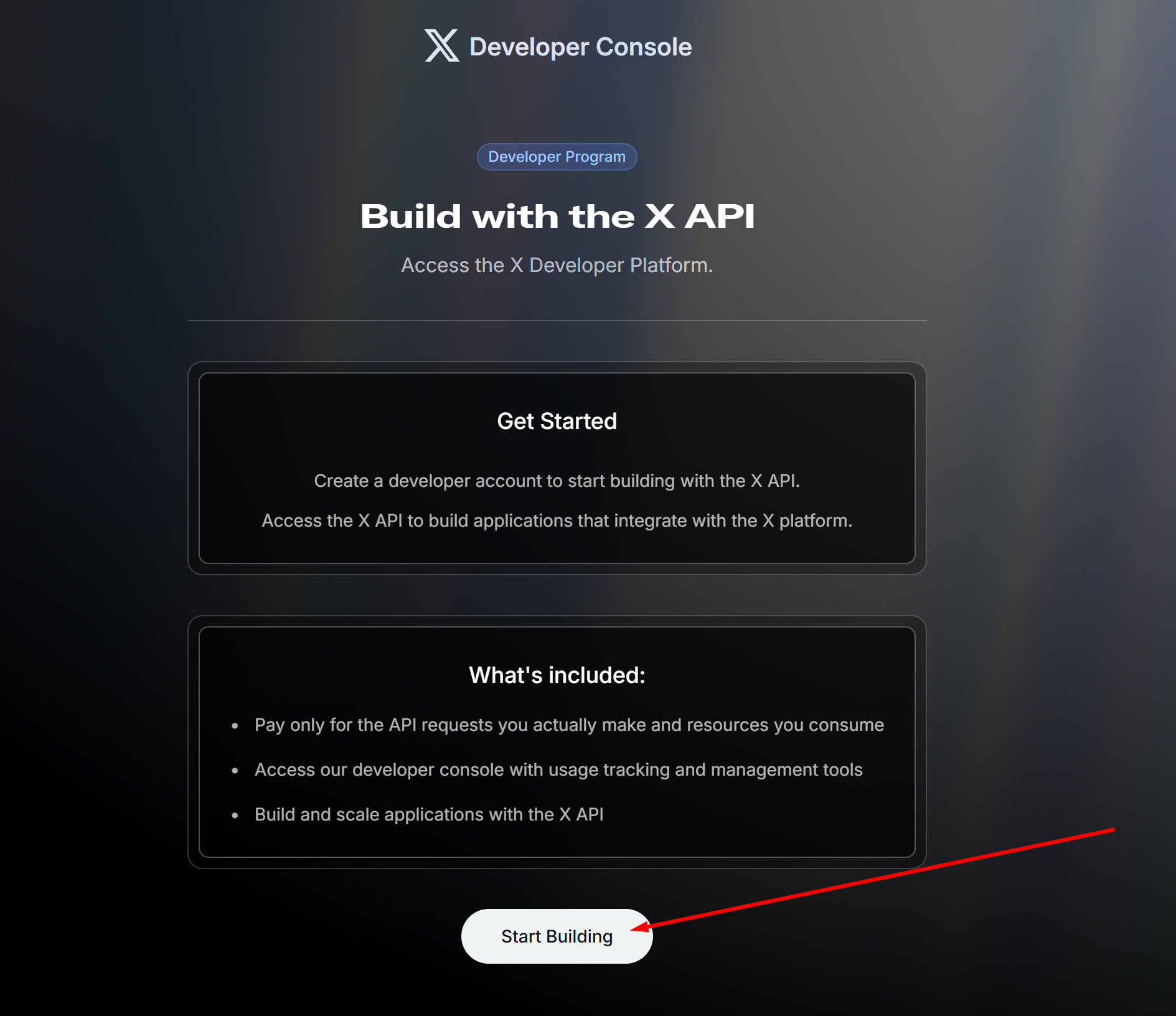
3
Create Your First Project
You will be prompted to create your first Project. Fill in the following details: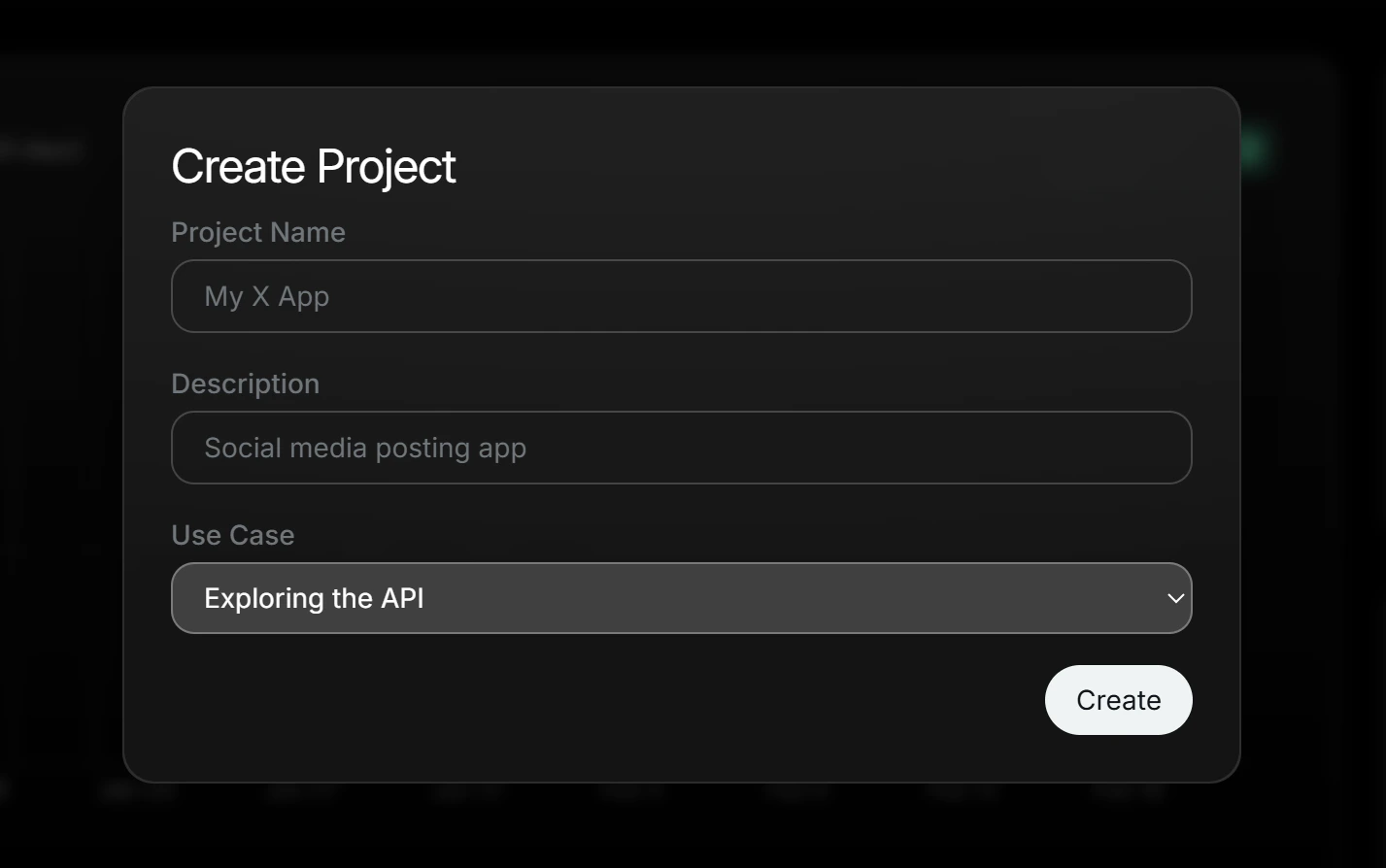
- Project Name: Give it a name like “PaddyPost” or “My Scheduler”.
- Description: Enter a short description (e.g., “Social media posting app”).
- Use Case: Select Exploring the API from the dropdown.
Step 2: Create an App
1
Navigate to Apps
On the Dashboard, click Apps in the sidebar, then click Create App.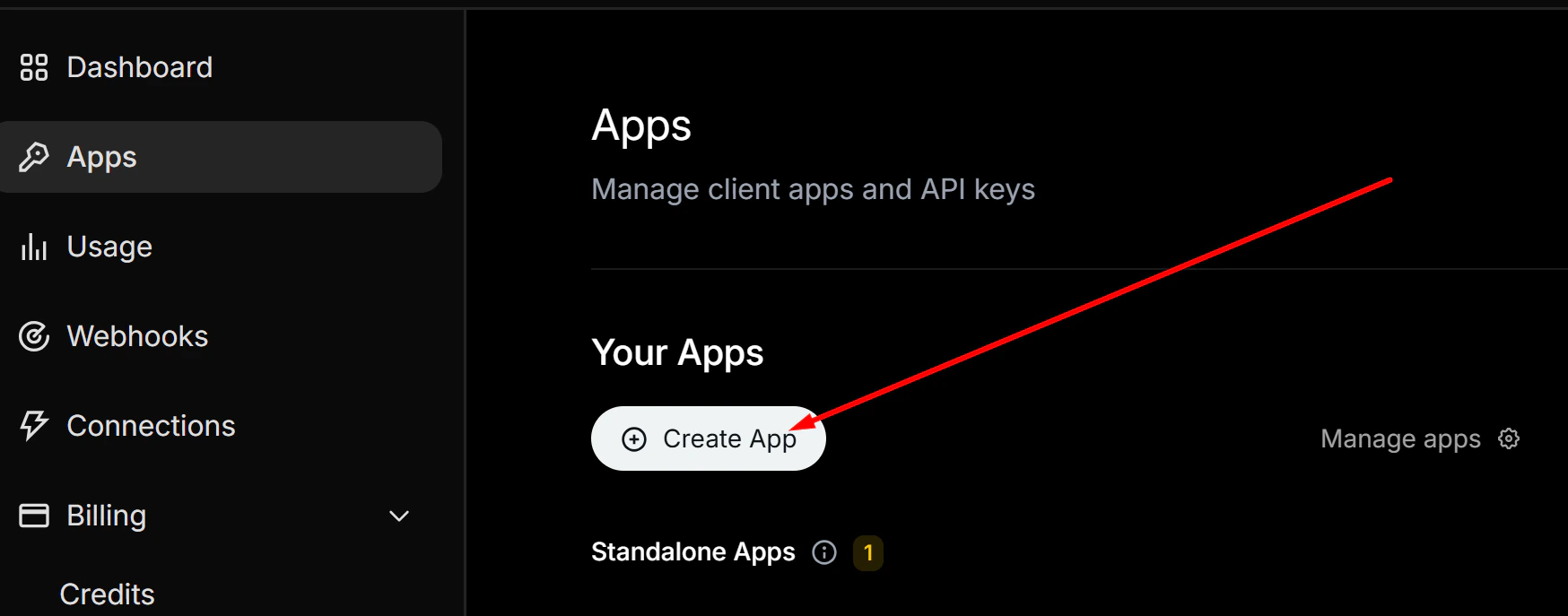
2
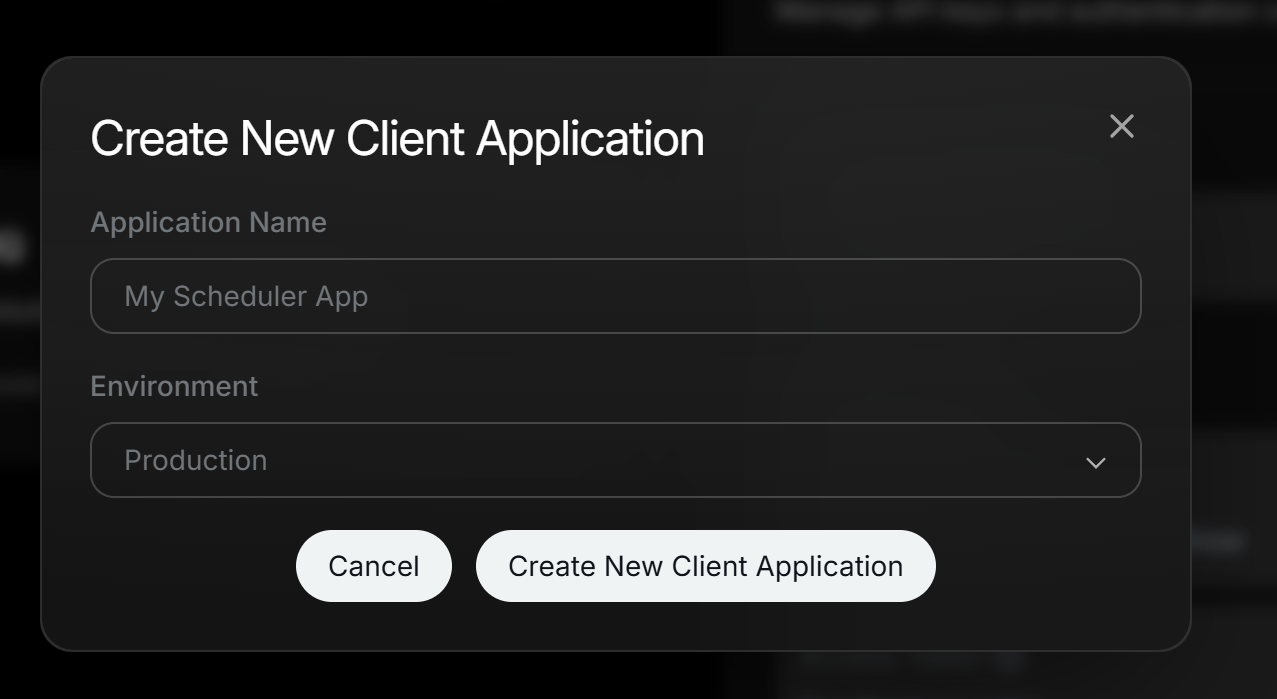
Configure and Create
- Application Name: Choose a unique name (e.g., “My Scheduler App”).
- Environment: Set this to Production.
3
Save Your Keys
After creation, you will be shown your Consumer Key and Secret Key. Copy both and save them in a secure place — they will not be shown again.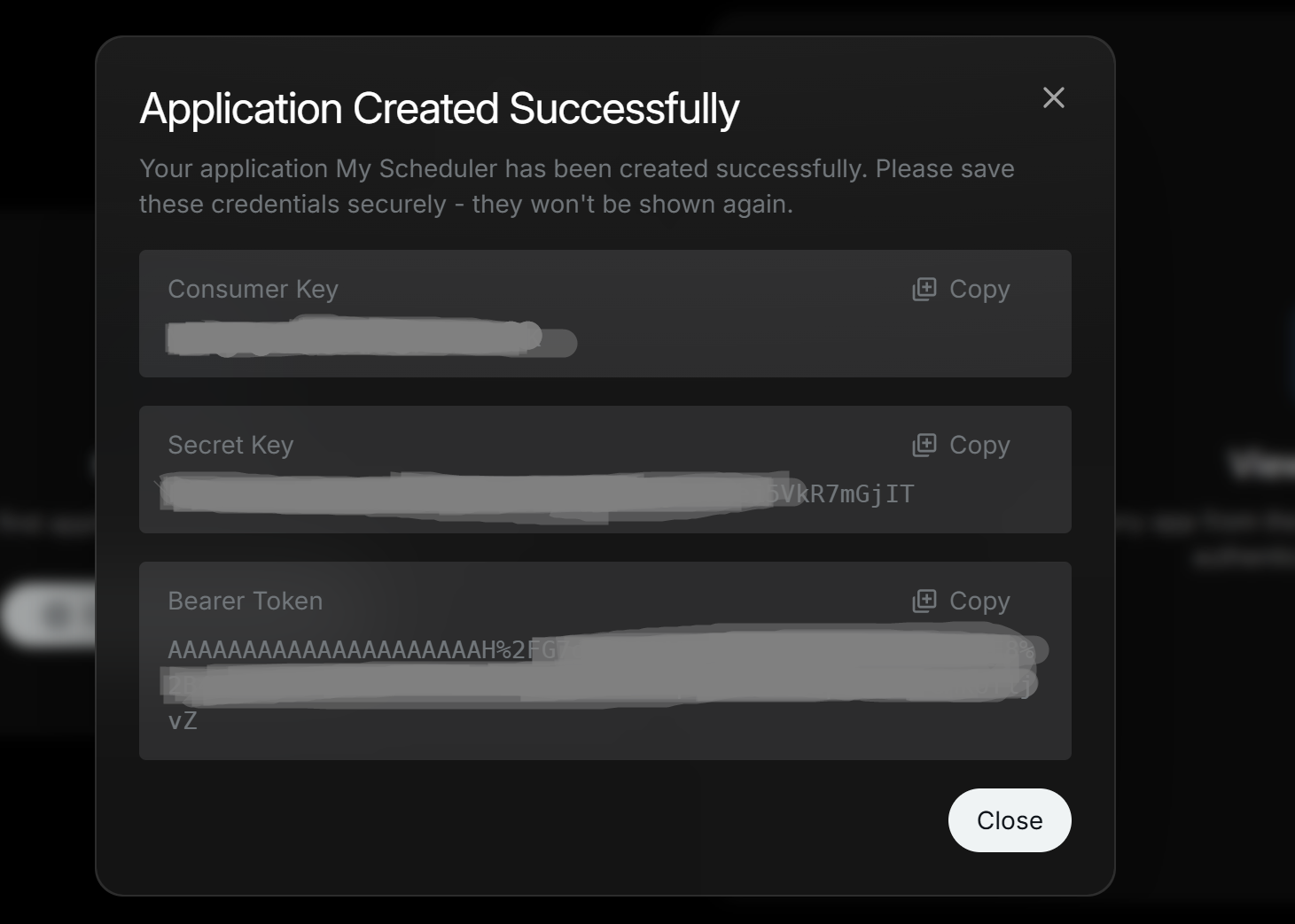
Step 3: Set Up User Authentication
1
Open Your App
Click on your newly created App. Under User authentication settings, click the Set up button.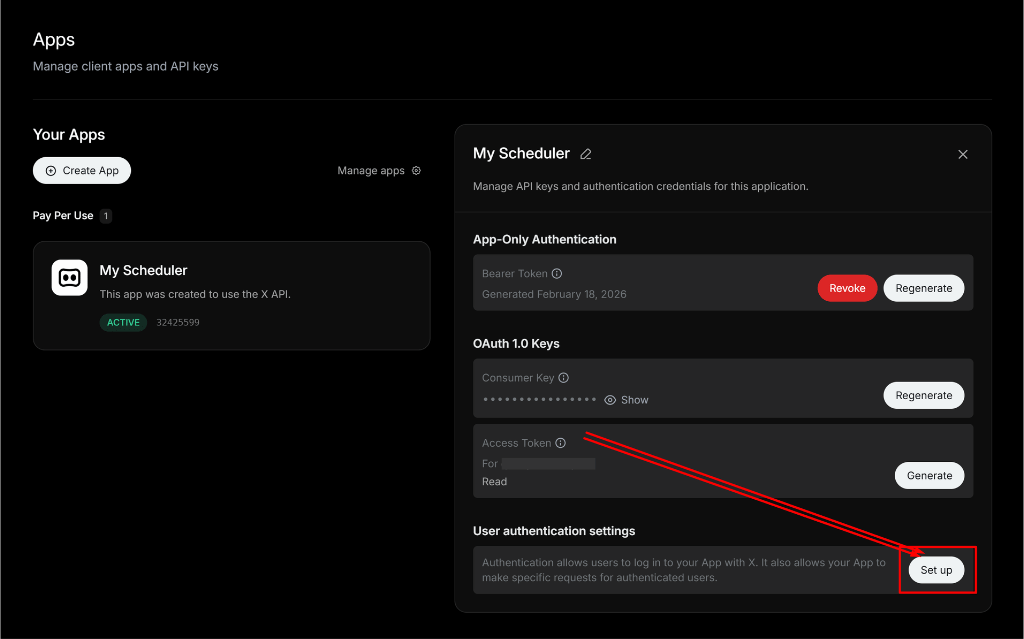
2
Set App Permissions
Under App permissions, select Read and write.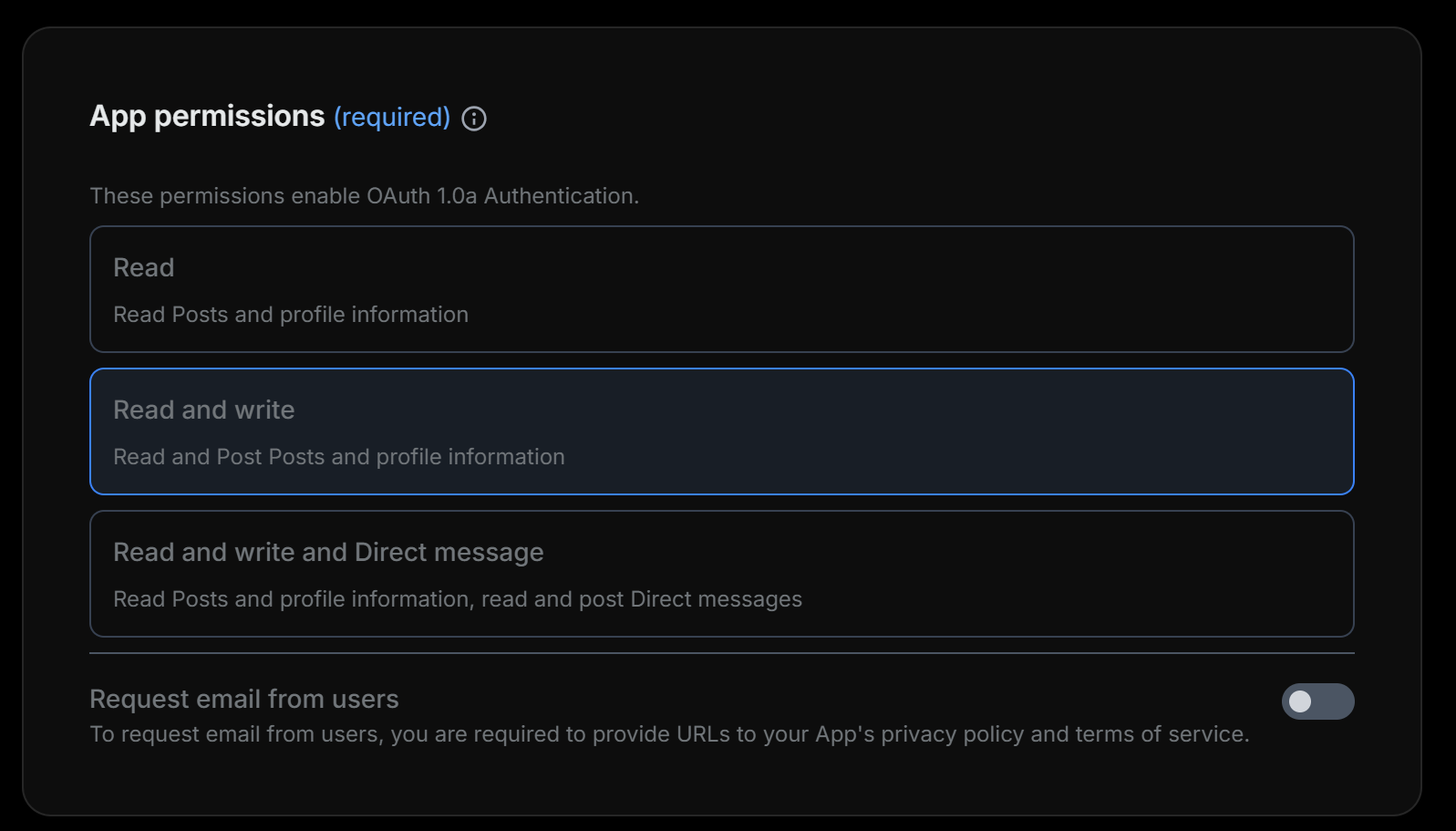
3
Set App Type
Under Type of App, select Web App, Automated App or Bot.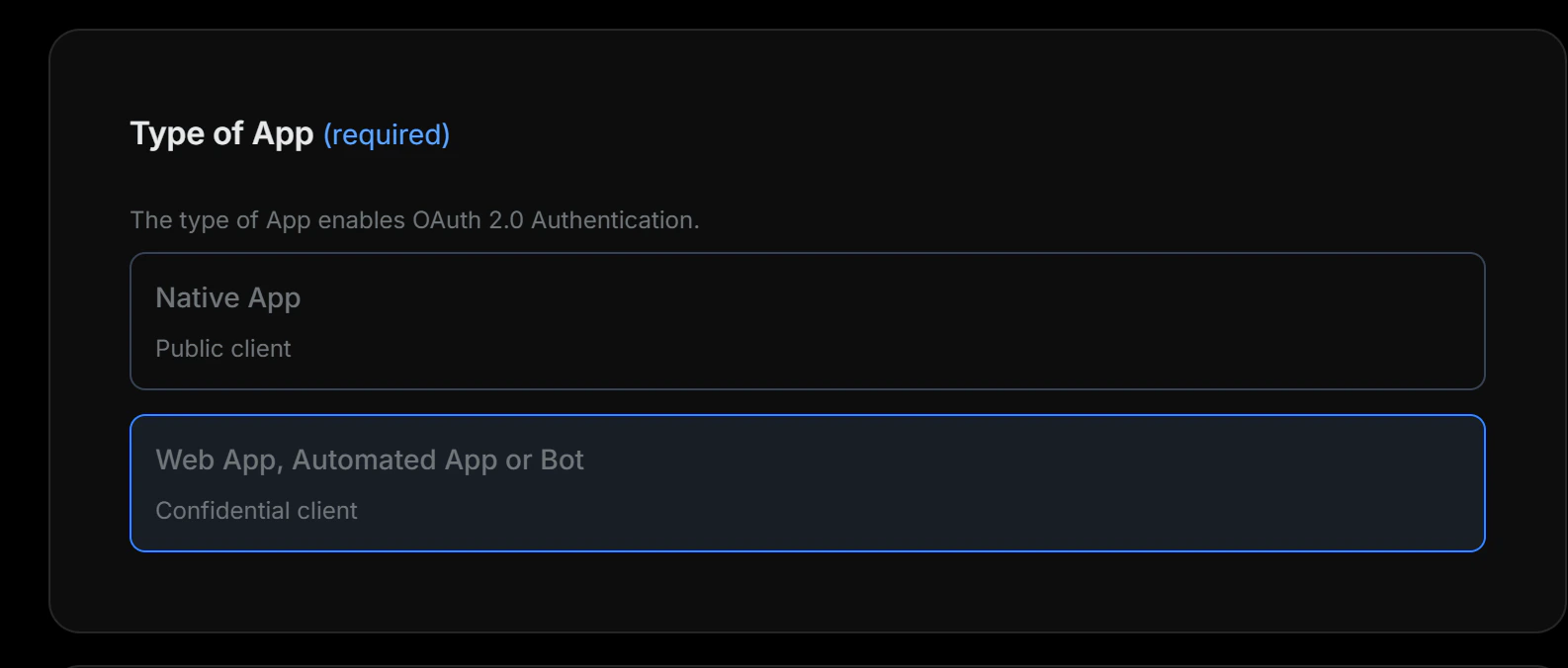
4
Enter Callback and Website URLs
Under App info, enter the following: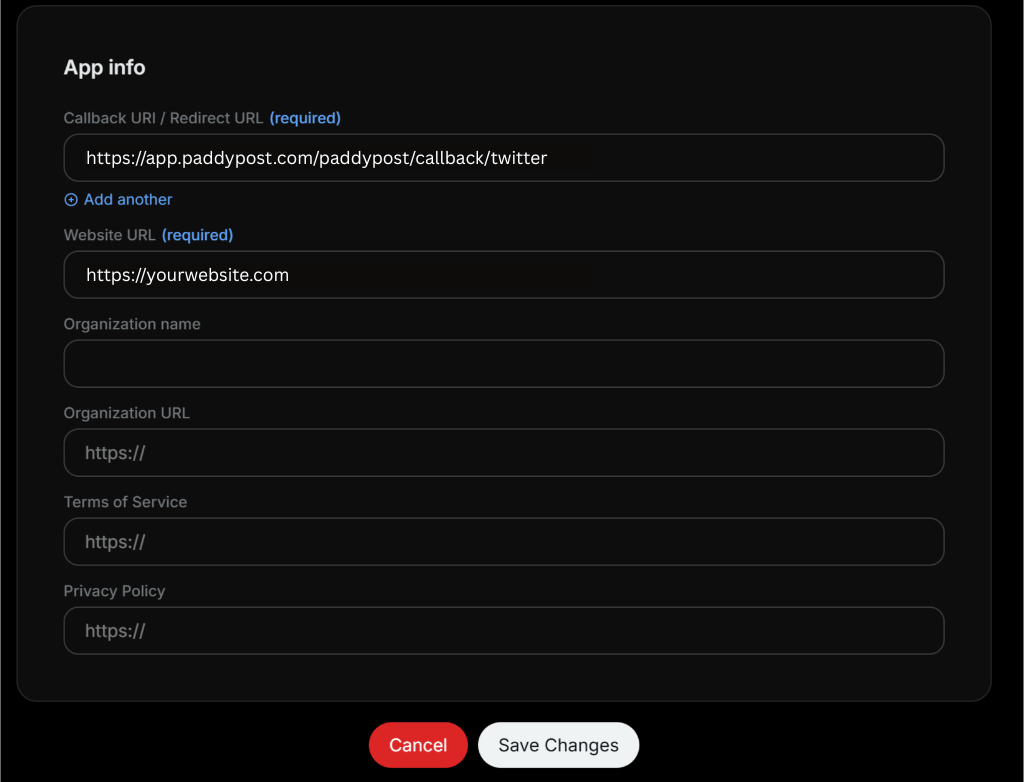
- Callback URI / Redirect URL:
- Website URL: Enter your main website URL (e.g.,
https://your-company.com).
5
Save
Click Save Changes at the bottom of the page.
You do not need to copy the Client ID or Client Secret shown after saving. You only need the Consumer Key and Secret Key you saved in Step 2.
Step 4: Add Credits to Your X Developer Account
X requires you to add credits to your developer account before you can make API calls.1
Go to Buy Credits
On your X Developer Console dashboard, click the Buy Credits button in the top right.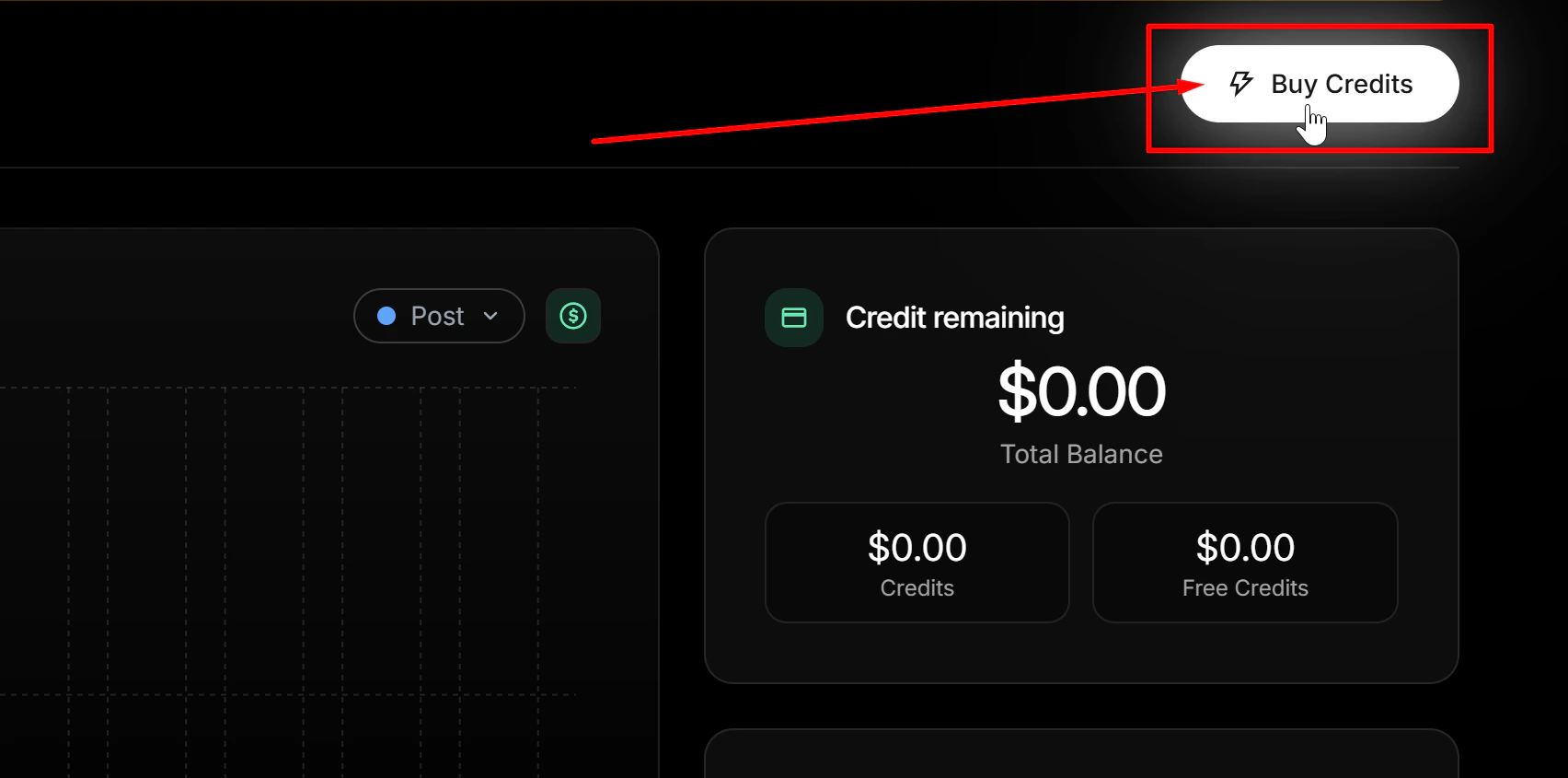
2
Purchase Credits
Select the amount you want to add. We recommend at least $5, which gives you approximately 500 posts.Click Continue to payment and complete the purchase.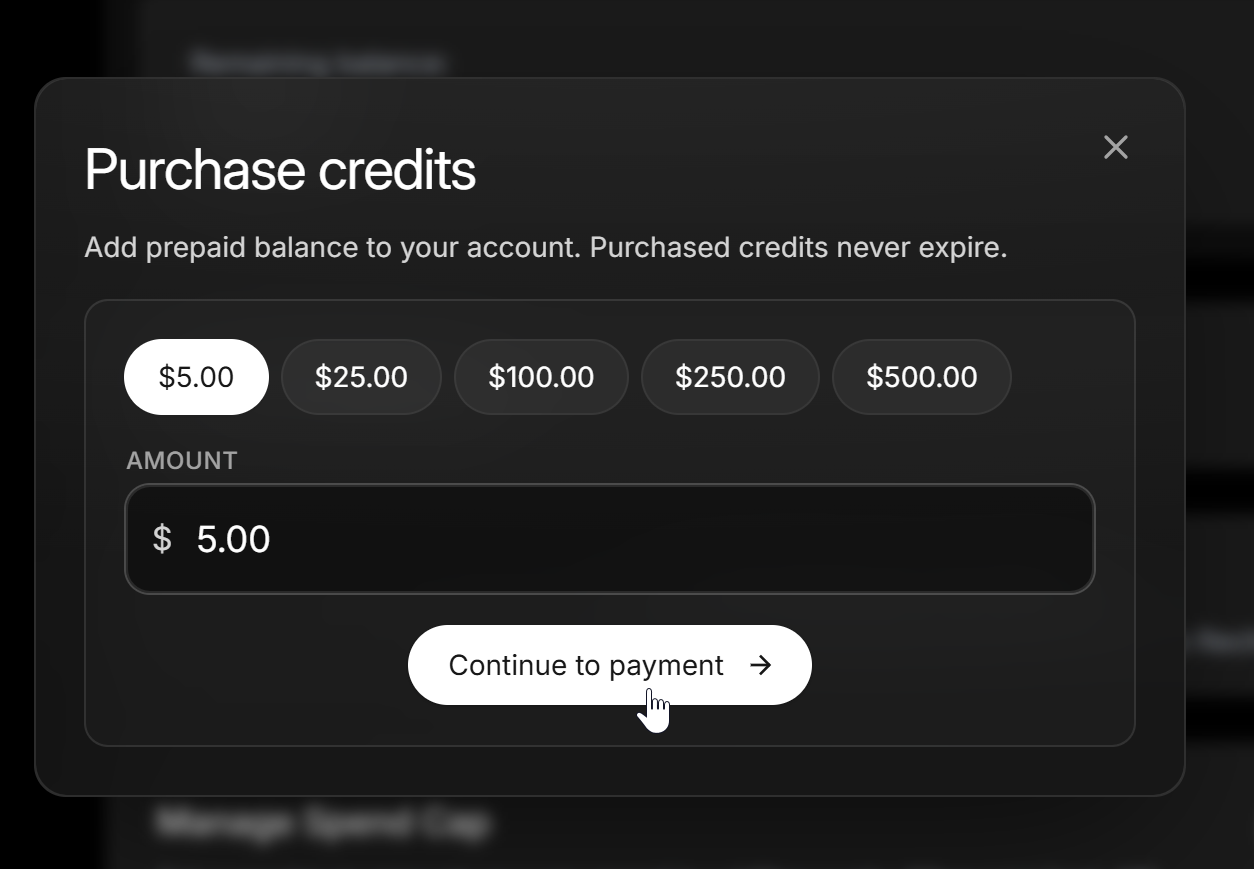
3
Confirm Balance
After payment, you will see your updated credit balance on the dashboard.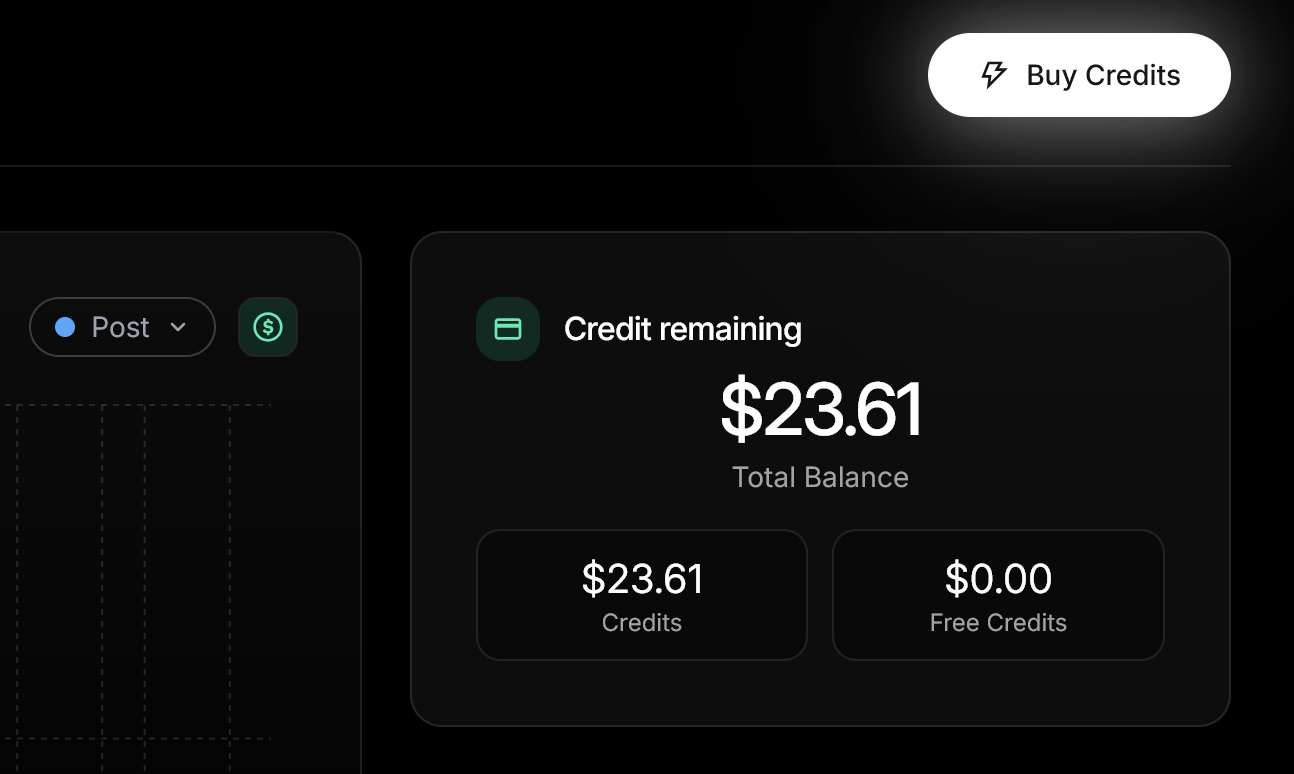
Step 5: Configure PaddyPost
1
Open Settings
Log in to PaddyPost as an Admin. Click on your profile menu and select Settings.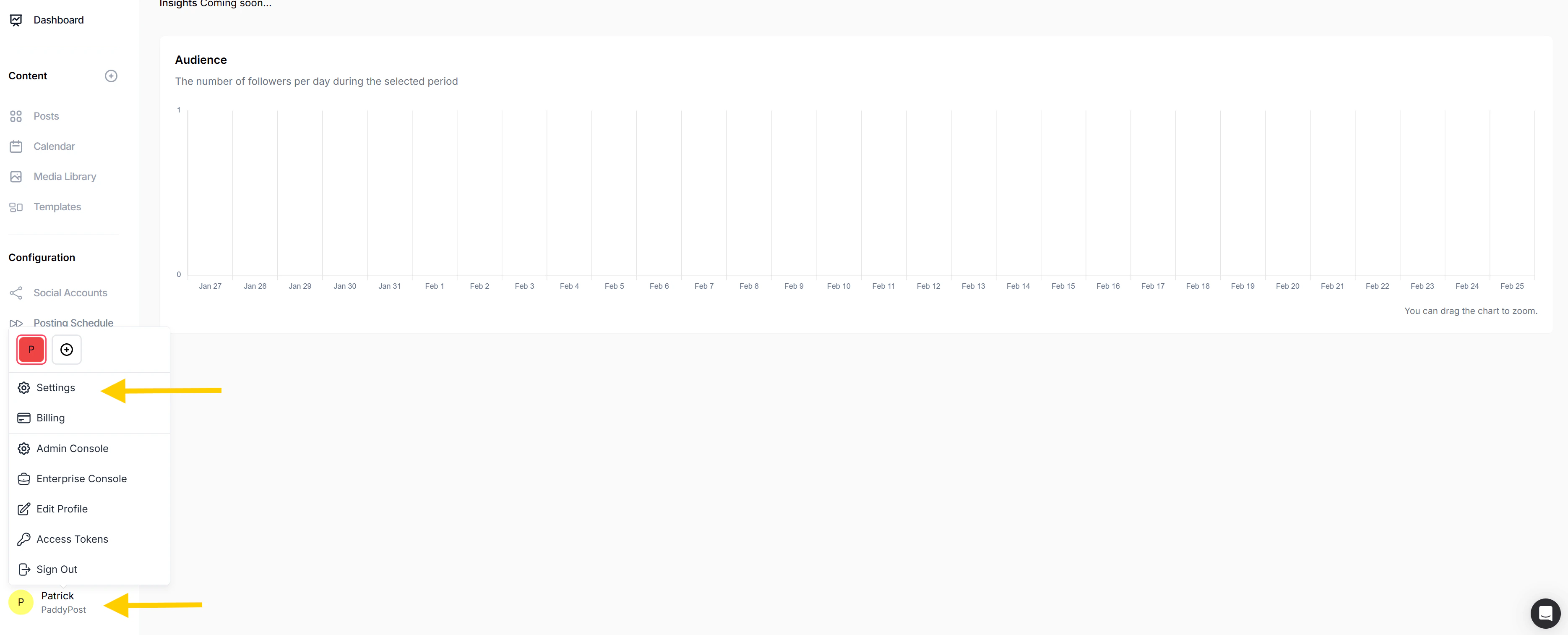
2
Go to Services
In the Settings sidebar, click Services.
3
Enter Your API Credentials
Find the X service and enter the following: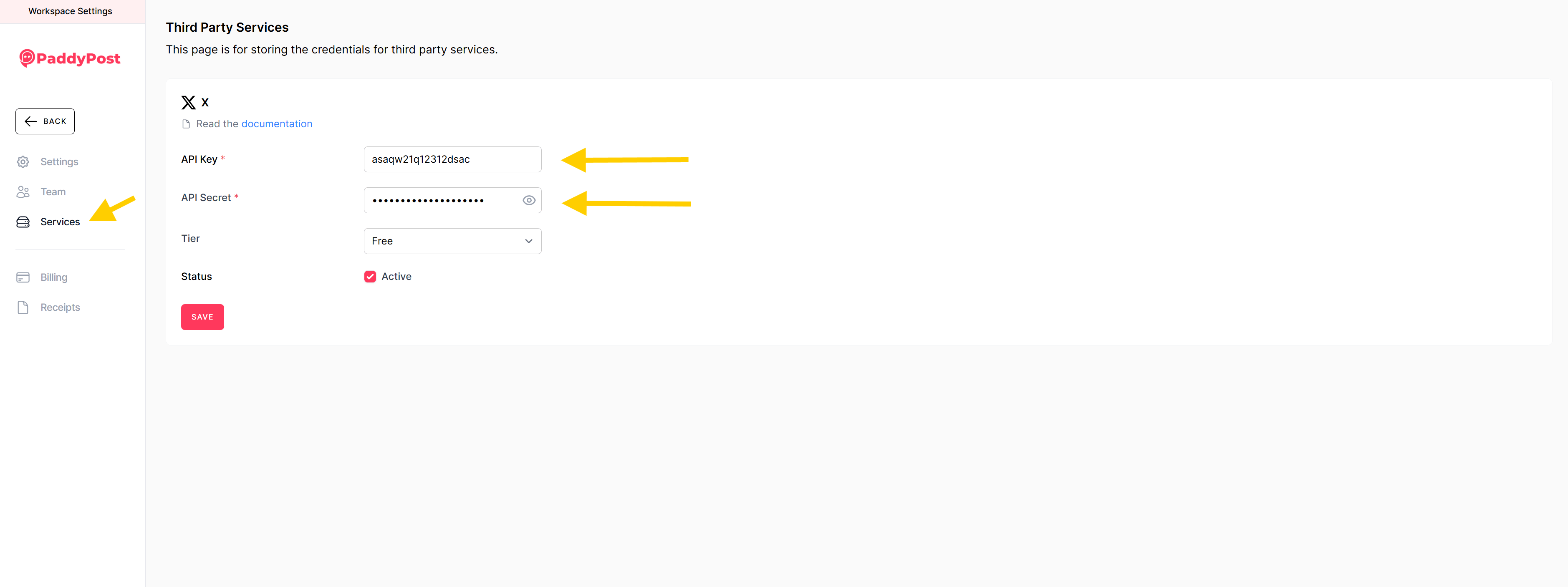
- API Key: Paste the Consumer Key you saved in Step 2.
- API Secret: Paste the Secret Key you saved in Step 2.
- Tier: Select Free (or Basic if you have upgraded your X developer plan).
- Status: Tick the Active checkbox.
Step 6: Connect Your Account
1
Go to Accounts
Navigate to the Accounts page in the PaddyPost sidebar.
2
Add Account
Click Add Account and select X.
3
Authorize
You will be redirected to X (Twitter). Click Authorize app to grant PaddyPost permission to post on your behalf.
Troubleshooting
Unable to connect after entering keys
Unable to connect after entering keys
The most common issue is pasting the wrong keys. Make sure you are using the Consumer Key and Secret Key (OAuth 1.0 keys), not the OAuth 2.0 Client ID and Secret.To fix this: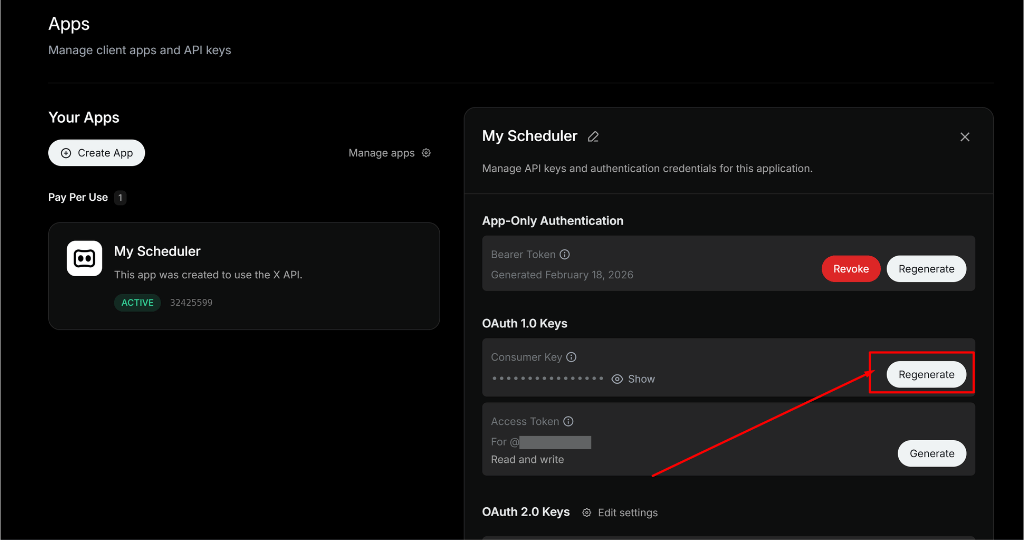
- Go to console.x.com.
- Click Apps in the sidebar and select your app.
- Under OAuth 1.0 Keys, click Regenerate.
- Copy the new Consumer Key and Secret Key.
- Update the keys in PaddyPost under Settings > Services.
Posts stuck in Publishing
Posts stuck in Publishing
If you can connect your profile but posts are stuck in “Publishing”, you have likely run out of X API credits.Go to your X Developer Console and add more credits. We recommend at least $5, which gives you approximately 500 posts.
Error: 403 Forbidden / Posting Failed
Error: 403 Forbidden / Posting Failed
This usually indicates a permission issue.
- Check App Permissions: Ensure Read and write is selected in “User authentication settings”.
- Regenerate Keys: If you changed permissions after generating keys, you must regenerate the Consumer Key and Secret.
Error: Callback URL mismatch
Error: Callback URL mismatch
Ensure the Callback URI in X Developer Console matches exactly:Check for trailing spaces or missing
https://.