> ## Documentation Index
> Fetch the complete documentation index at: https://support.paddypost.com/llms.txt
> Use this file to discover all available pages before exploring further.
# Quick Start Guide
> Get set up and publish your first social media post in minutes.
Welcome to PaddyPost! This guide will help you get set up and publish your first social media post in just a few minutes.
## 1. Configure Your Profile & Workspace
When you log in, a **Workspace** is already active. This is where you organize your social accounts, media, and team members.
### Edit Profile Settings
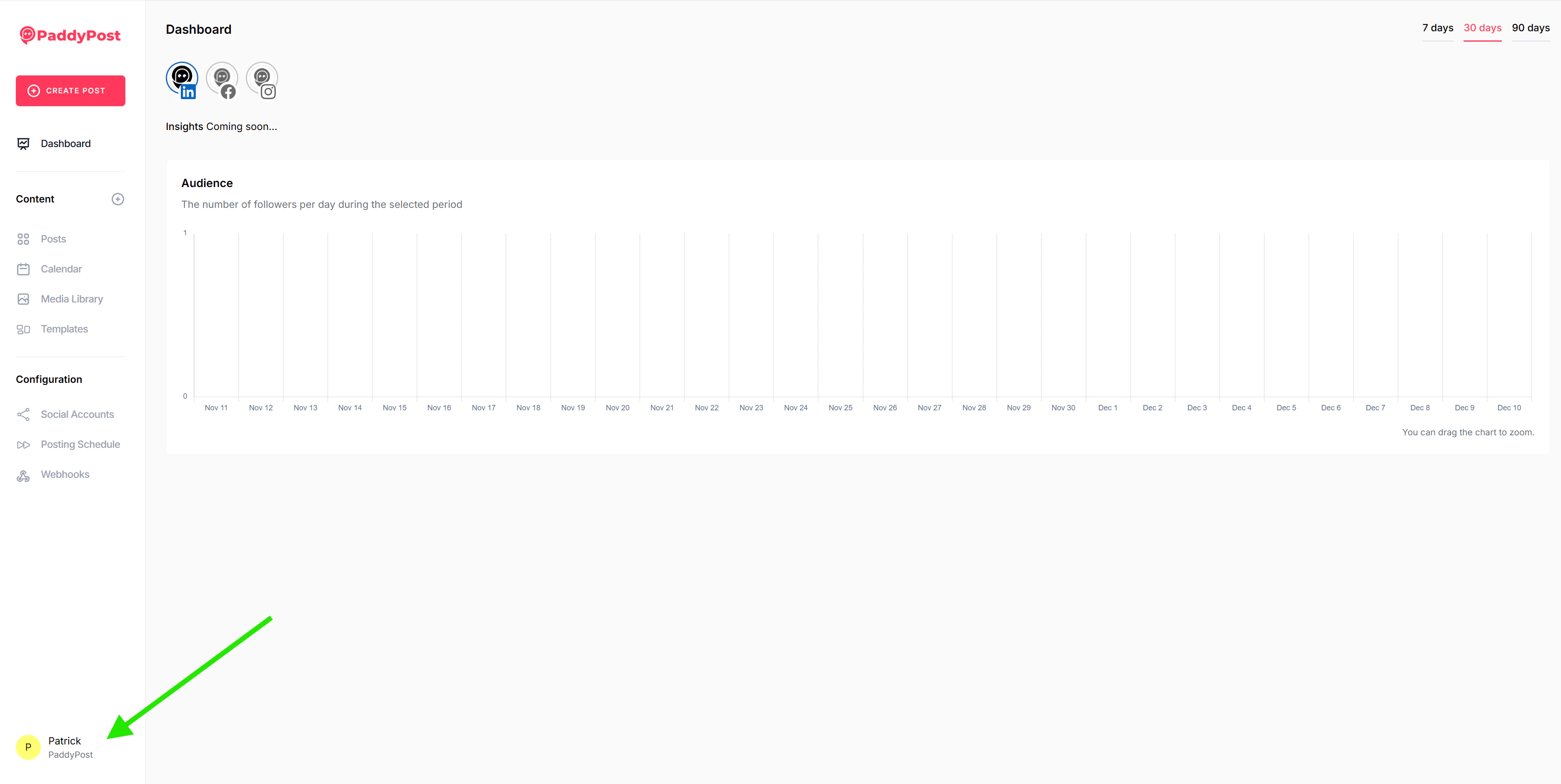
1. Click on your **User Avatar** in the bottom left corner of the sidebar.
2. Select **Edit Profile**.
3. From here, you can:
* Update your **Profile Information** (Name, Email).
* Set your **Preferences** (Language, Timezone).
* Change your **Password**.
* Enable **Two-Factor Authentication**.
### Edit Workspace Settings
1. Click on your **User Avatar** in the bottom left corner.
2. Select **Settings** (if available) to access workspace configuration options.
 ## 2. Connect Social Accounts
Before you can post, you need to connect your social media profiles.
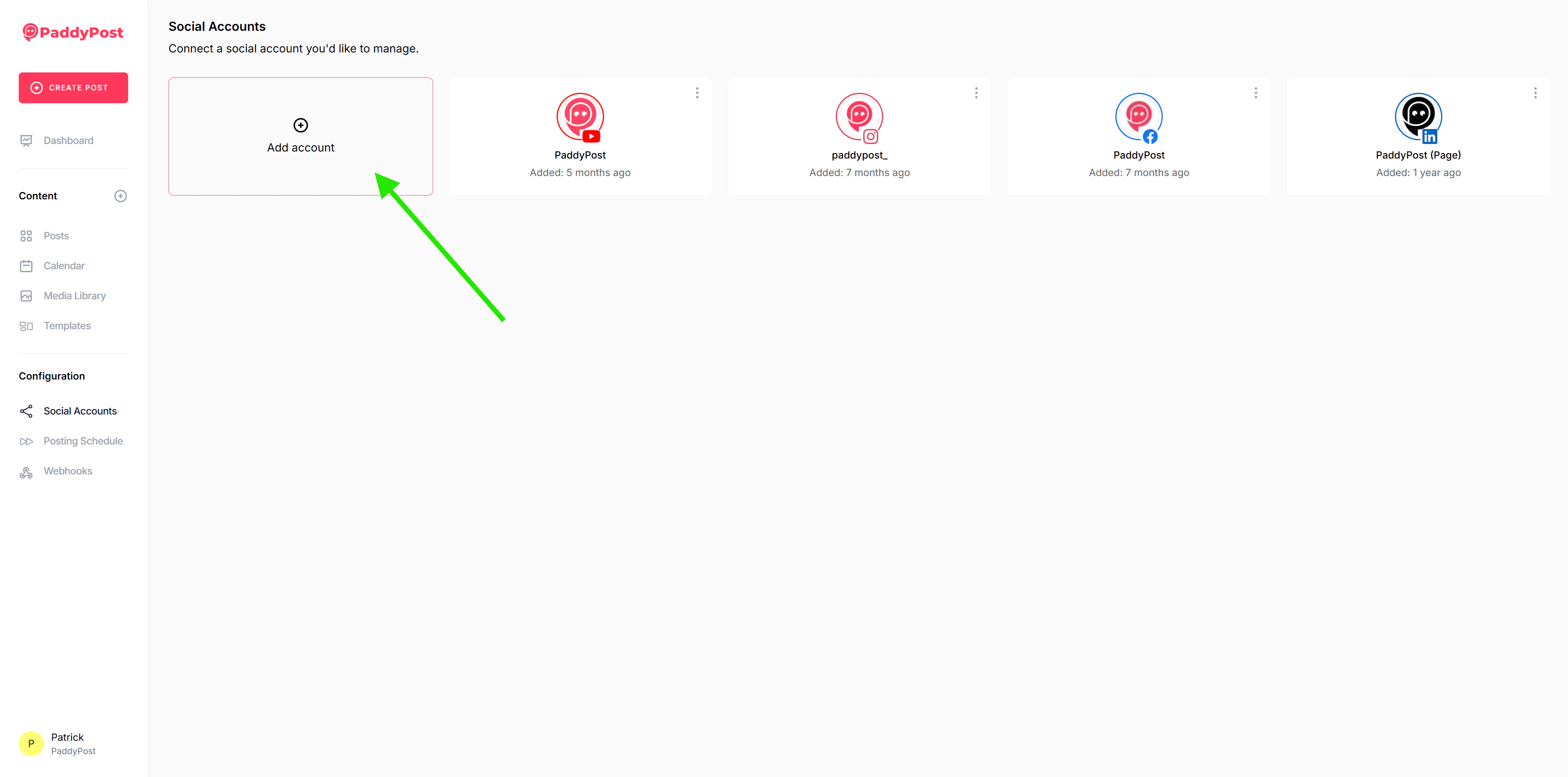
1. Navigate to **Accounts** in the sidebar.
2. Click **Add Account**.
3. Select the social network you want to connect.
4. Follow the authorization prompts to grant PaddyPost permission.
> **Tip:** You can connect multiple accounts to a single workspace.
For detailed instructions on connecting specific platforms, see our dedicated guides:
## 2. Connect Social Accounts
Before you can post, you need to connect your social media profiles.
1. Navigate to **Accounts** in the sidebar.
2. Click **Add Account**.
3. Select the social network you want to connect.
4. Follow the authorization prompts to grant PaddyPost permission.
> **Tip:** You can connect multiple accounts to a single workspace.
For detailed instructions on connecting specific platforms, see our dedicated guides:
 ## 3. Create Your First Post
Now that you're connected, let's create some content.
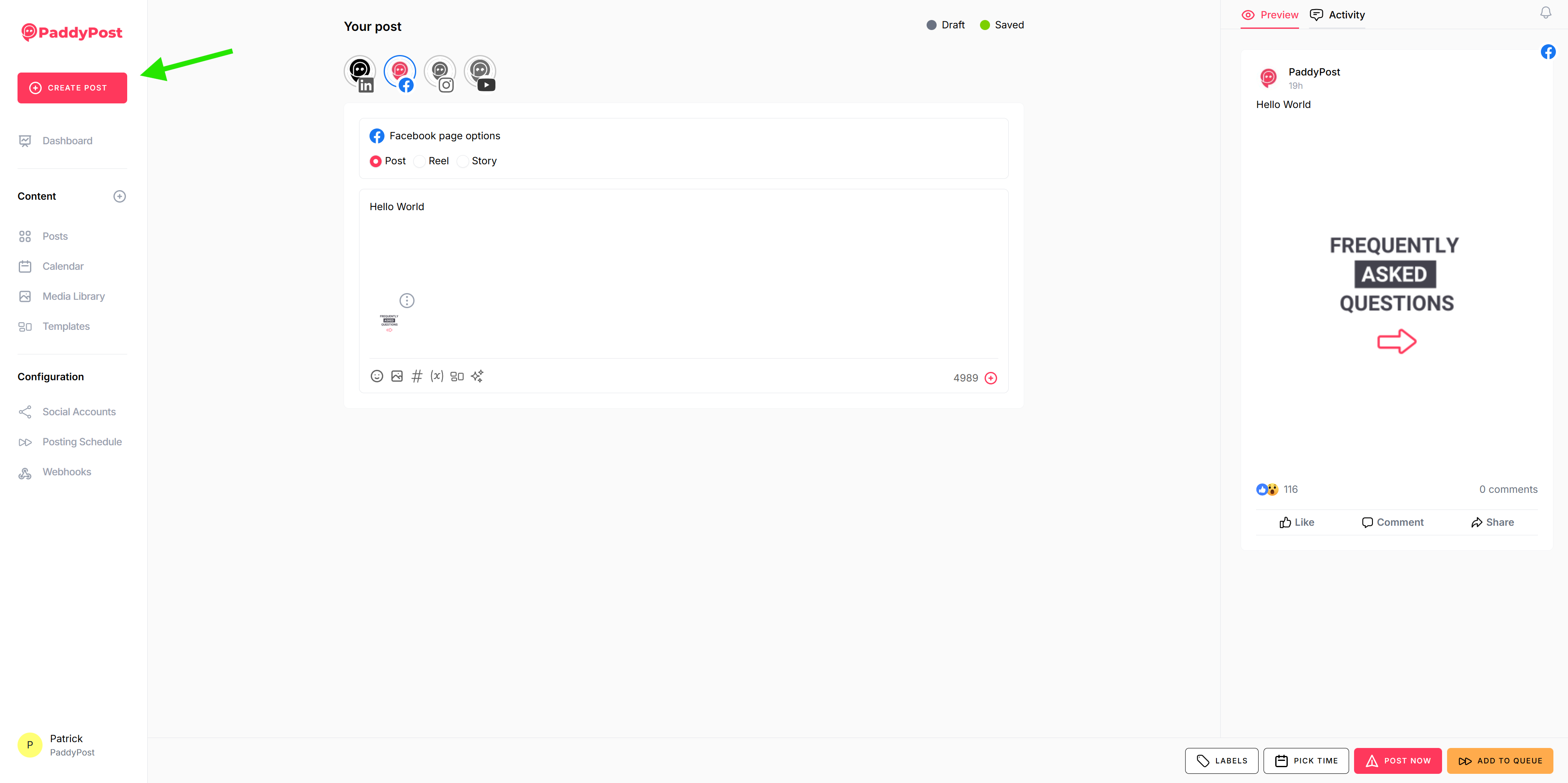
1. Click **Create Post** in the sidebar.
2. **Select Accounts**: Choose which social accounts this post should go to.
3. **Write Content**: Type your message in the text editor. You can use hashtags and emojis!
4. **Add Media**: Click the image/video icon to upload media or choose from your library.
5. **Preview**: Check the preview pane on the right to see how your post will look on each platform.
## 3. Create Your First Post
Now that you're connected, let's create some content.
1. Click **Create Post** in the sidebar.
2. **Select Accounts**: Choose which social accounts this post should go to.
3. **Write Content**: Type your message in the text editor. You can use hashtags and emojis!
4. **Add Media**: Click the image/video icon to upload media or choose from your library.
5. **Preview**: Check the preview pane on the right to see how your post will look on each platform.
 ## 4. Schedule or Publish
Once you're happy with your post, you have a few options:
* **Publish Now**: Send the post immediately.
* **Schedule**: Pick a specific date and time for the post to go live.
* **Add to Queue**: Add the post to your automated posting schedule.
🎉 **Congratulations!** You've just mastered the basics of PaddyPost.
## 4. Schedule or Publish
Once you're happy with your post, you have a few options:
* **Publish Now**: Send the post immediately.
* **Schedule**: Pick a specific date and time for the post to go live.
* **Add to Queue**: Add the post to your automated posting schedule.
🎉 **Congratulations!** You've just mastered the basics of PaddyPost.